

1
Invite the bot to the new server
To avoid mismatch errors, always invite the bot directly from your dashboard. Navigate to the VaultCord Bots page.
Locate the specific bot that you used for your original server and click Invite Bot.

1
Select the original server
From the server list, select your original server (the server you want to pull members from).
2
Initiate the transfer
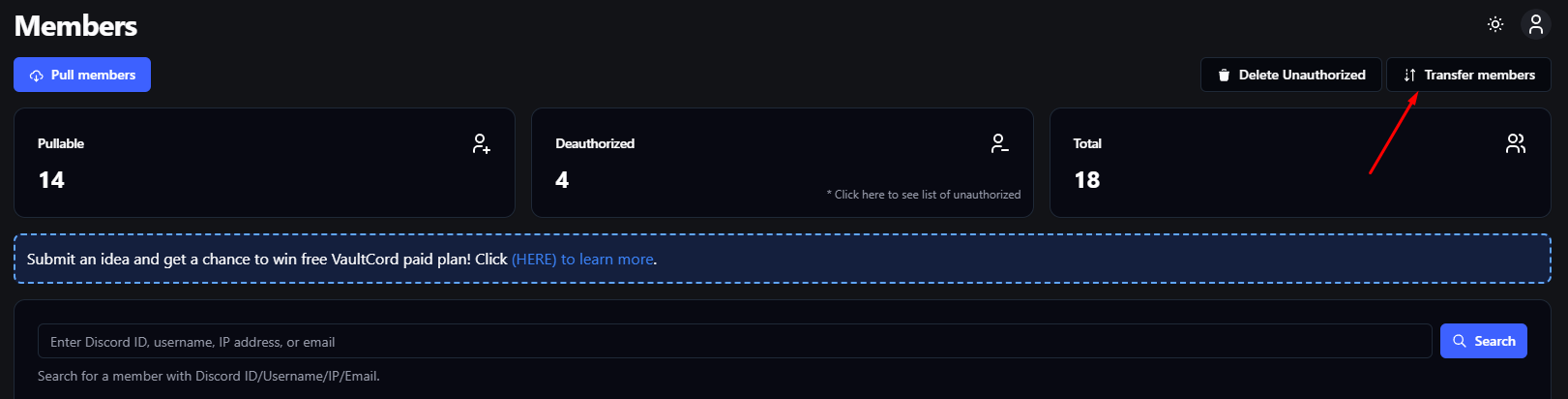
In the top right corner, click the Transfer members button.
1
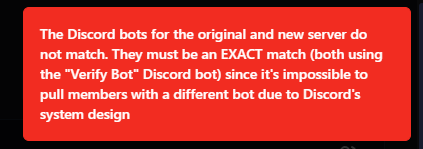
Kick the bot from the new server
Go to your new Discord server settings and remove the VaultCord bot. This helps clear any bugged roles or permissions.
2
Re-invite the exact same bot
Go back to the Bots page and click Invite Bot again. Make sure you invite the exact same bot you used in your original server.
3
Retry the transfer
Return to the dashboard and try the transfer again.
You’ve started the member transfer process successfully!
Any Questions?
If you have any questions, join our Discord Server and ask us anything!