

If you prefer a visual guide, check out our full video tutorial on Team Management: VaultCord Teams Tutorial.
How to Invite a Team Member
1
Navigate to the Teams page
Go to your VaultCord Dashboard and select the Teams tab from the main menu. Then, click the button to invite a new team member.
2
Fill in the invitation details
A pop-up window will appear where you can set the access details for your staff member.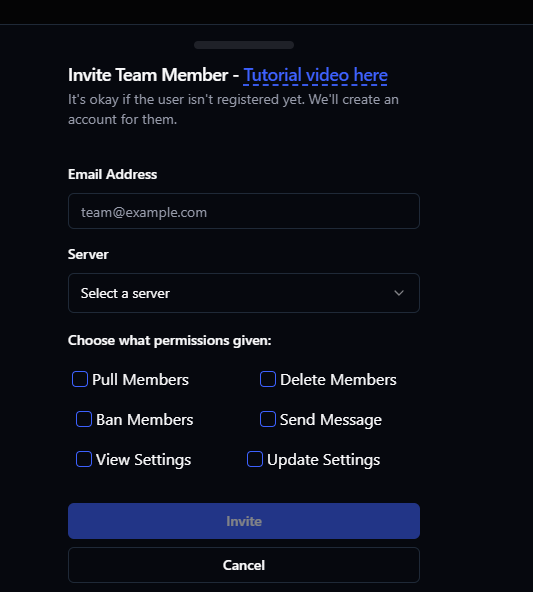
- Email Address: Enter your staff member’s email address. If they aren’t registered yet, VaultCord will create an account for them automatically.
- Server: Choose the Discord server you want them to access.
3
Choose Permissions
Pick the permissions you want this team member to have. You can let them:
- Pull Members: Let them move verified users.
- Ban/Delete Members: Let them remove unwanted users from your database.
- Send Message: Let them send the verification bot message.
- View/Update Settings: Let them update dashboard and security settings.
4
Send the Invite
Click Invite. The user will receive an email notification with instructions on how to access the dashboard.
Troubleshooting
My staff member didn't receive the invite email
My staff member didn't receive the invite email
If your staff member already has a VaultCord account but isn’t receiving your team invitation, their account email preferences might be blocking it.How to fix it: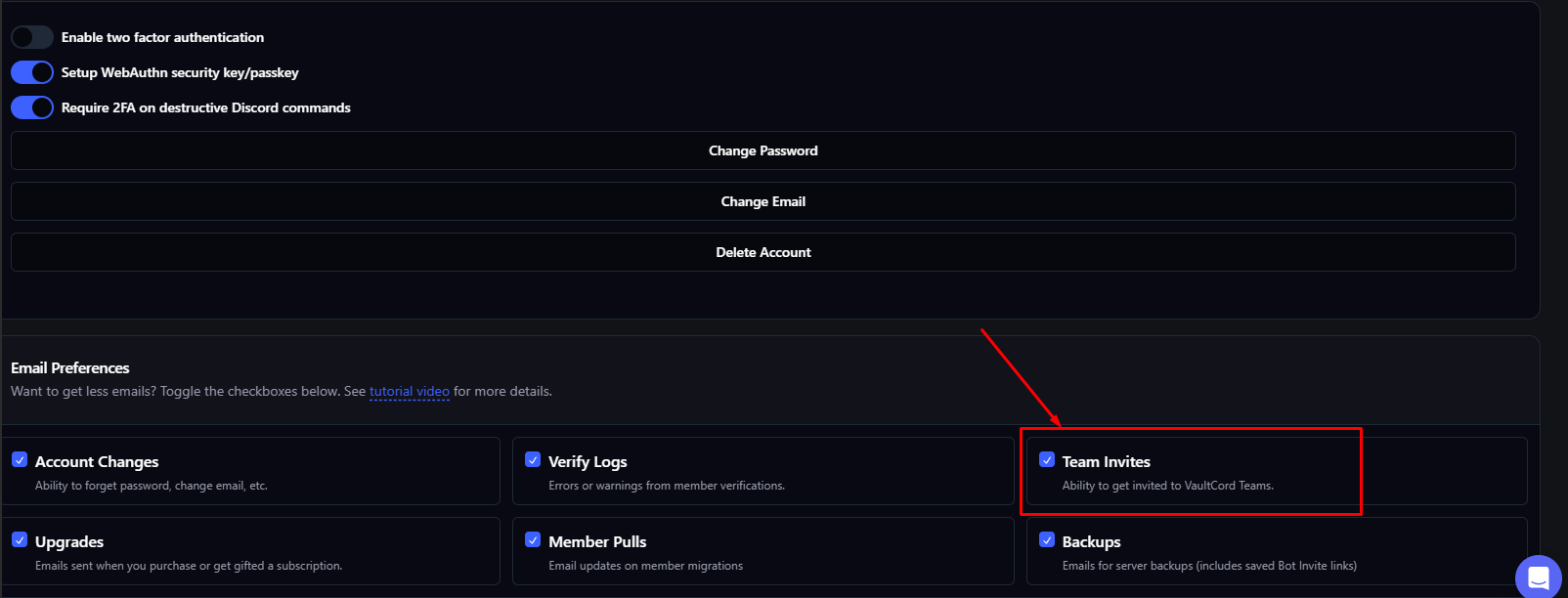
- Tell your staff member to log into their VaultCord Dashboard.
- Have them navigate to their Account Settings.
- Scroll down to the Email Preferences section.
- Ensure that the Team Invites checkbox is Toggled ON (Ability to get invited to VaultCord Teams).
How do I remove a team member?
How do I remove a team member?
If a staff member leaves your team, you can remove their dashboard access right away. Just go to the Teams tab, find the user in your team list, and click the Remove/Delete button next to their name. Their access will be removed immediately.
Contact Live Chat Support
Our support team is available through Live Chat on our website. Please share your Order ID or the email you used for the transaction so we can help you faster.