> ## Documentation Index
> Fetch the complete documentation index at: https://docs.vaultcord.com/llms.txt
> Use this file to discover all available pages before exploring further.
# Setup a verify message
> Create a verify embed inside of your Discord server with a few simple steps.
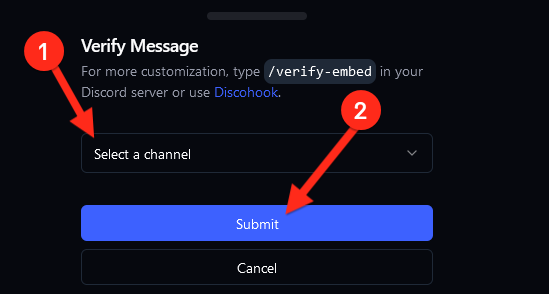
> Navigate to the [VaultCord dashboard.](https://dash.vaultcord.com) then ****click on the servers tab and select the server**** you want to send a verify message in. Then click the ****Verify Message**** button.
 > Next ****select the channel where you the verify message**** to be sent Once you have done that press submit. Once you have completed that you have successfully sent a verification message in that channel.
 ## Slash Commands
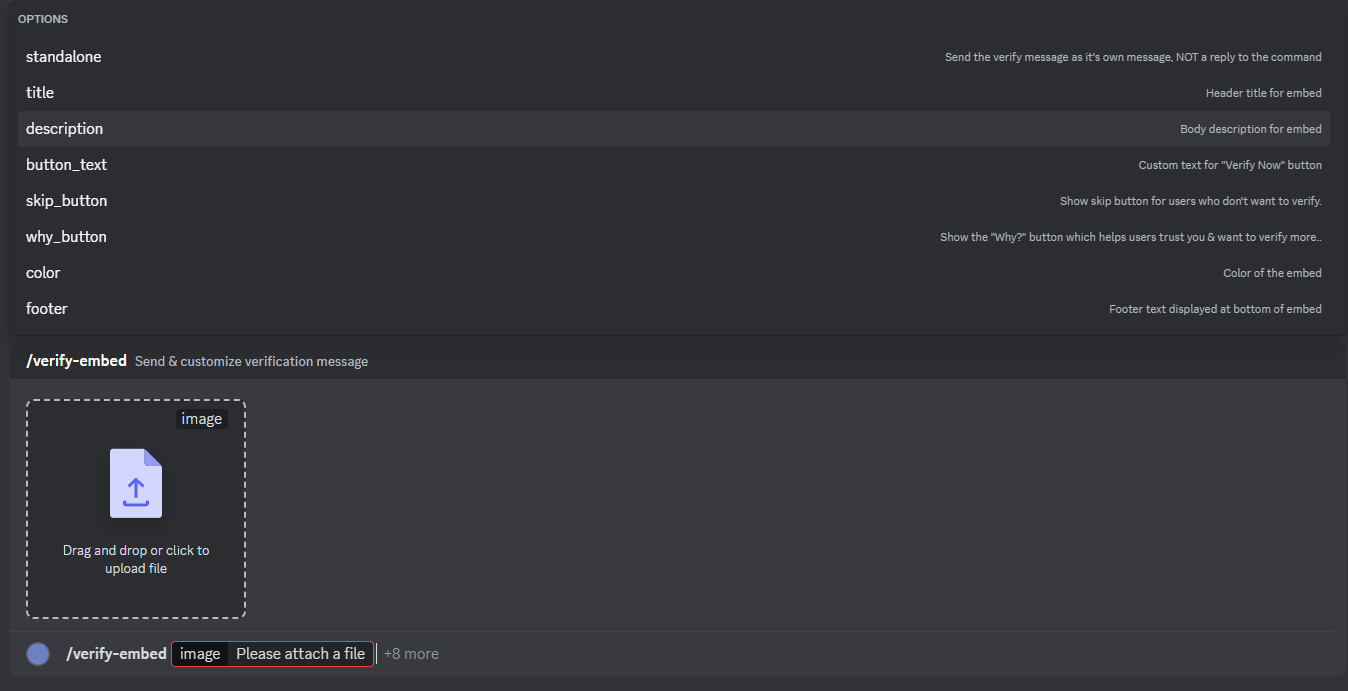
With the `/verify-embed` command in your Discord server, you can set many different options to customize your verify message.
## Slash Commands
With the `/verify-embed` command in your Discord server, you can set many different options to customize your verify message.
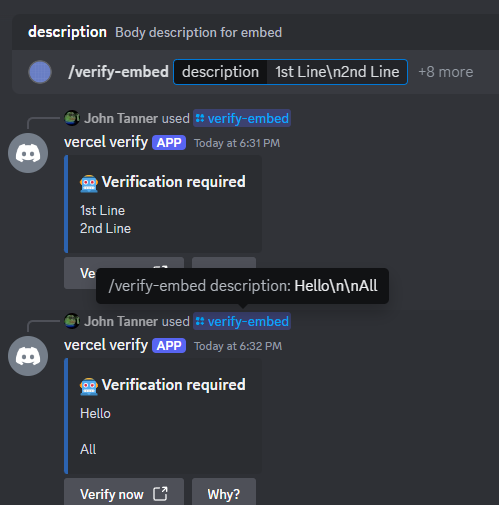
 Do you want **multiple lines** in your message description? Use the `\n` character once for **each** new line you want.
 You can use **/verify-embed** if you have a **paid plan.**
Once you have ran this command you will be shown multiple options to customize your verify message.
If you have any questions, Feel free to join our [Discord Server](https://vaultcord.com/discord) and ask us anything!
You can use **/verify-embed** if you have a **paid plan.**
Once you have ran this command you will be shown multiple options to customize your verify message.
If you have any questions, Feel free to join our [Discord Server](https://vaultcord.com/discord) and ask us anything!