> ## Documentation Index
> Fetch the complete documentation index at: https://docs.vaultcord.com/llms.txt
> Use this file to discover all available pages before exploring further.
# Transfer Members
> Step-by-step guide for transferring members between servers
Moving your verified members from one server to another is a key feature of VaultCord. You’ll need this if your original server was compromised, deleted, or if you’re moving your community to a new server.
> To avoid mismatch errors, always invite the bot directly from your dashboard. Navigate to the [VaultCord Bots page](https://dash.vaultcord.com/bots).
> Locate the specific bot that you used for your original server and click **Invite Bot**.
 > You must use the exact same Discord bot in both the original and new servers. Discord's API prevents pulling members using a different bot application.
Transferring your members
Go to the VaultCord Dashboard, open the Members tab, and follow these steps to transfer your members.
> From the server list, select your **original server** (the server you want to pull members from).
> In the top right corner, click the **Transfer members** button.
> You must use the exact same Discord bot in both the original and new servers. Discord's API prevents pulling members using a different bot application.
Transferring your members
Go to the VaultCord Dashboard, open the Members tab, and follow these steps to transfer your members.
> From the server list, select your **original server** (the server you want to pull members from).
> In the top right corner, click the **Transfer members** button.
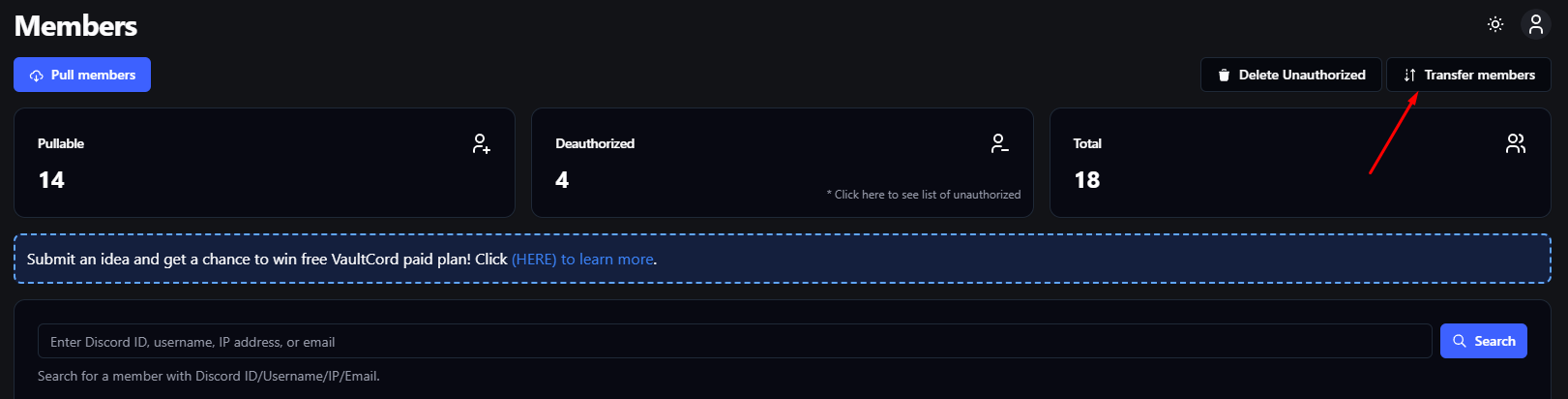 Follow the on-screen prompts to choose your target server and start transferring your members.
Troubleshooting bot mismatch
If you see a red error message saying the bots do not match, it means the system found different bots or there are cached permission issues.
Follow the on-screen prompts to choose your target server and start transferring your members.
Troubleshooting bot mismatch
If you see a red error message saying the bots do not match, it means the system found different bots or there are cached permission issues.
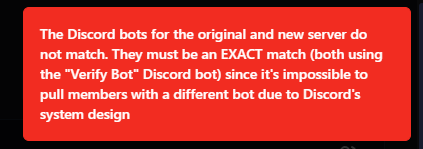 > Go to your new Discord server settings and remove the VaultCord bot. This helps clear any bugged roles or permissions.
> Go back to the [Bots](https://dash.vaultcord.com/bots) page and click Invite Bot again. Make sure you invite the exact same bot you used in your original server.
> Return to the dashboard and try the transfer again.
You’ve started the member transfer process successfully!
If you have any questions, join our [Discord Server](https://vaultcord.com/discord) and ask us anything!
> Go to your new Discord server settings and remove the VaultCord bot. This helps clear any bugged roles or permissions.
> Go back to the [Bots](https://dash.vaultcord.com/bots) page and click Invite Bot again. Make sure you invite the exact same bot you used in your original server.
> Return to the dashboard and try the transfer again.
You’ve started the member transfer process successfully!
If you have any questions, join our [Discord Server](https://vaultcord.com/discord) and ask us anything!