> ## Documentation Index
> Fetch the complete documentation index at: https://docs.vaultcord.com/llms.txt
> Use this file to discover all available pages before exploring further.
# Team Management
> Learn how to invite staff members to your VaultCord dashboard and manage their permissions.
Managing a large community usually takes a team. With VaultCord, you can safely share your dashboard with staff without giving out your account password. You also have full control over what each team member can see and do.
If you prefer a visual guide, check out our full video tutorial on Team Management: [**VaultCord Teams Tutorial**](https://vimeo.com/1102816775).
## How to Invite a Team Member
Go to your [VaultCord Dashboard](https://dash.vaultcord.com) and select the **Teams** tab from the main menu. Then, click the button to invite a new team member.
A pop-up window will appear where you can set the access details for your staff member.
1. **Email Address:** Enter your staff member's email address. If they aren't registered yet, VaultCord will create an account for them automatically.
2. **Server:** Choose the Discord server you want them to access.
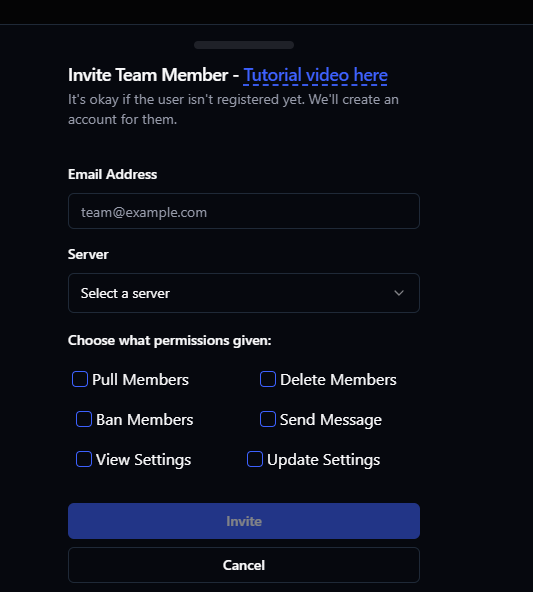 Pick the permissions you want this team member to have. You can let them:
* **Pull Members:** Let them move verified users.
* **Ban/Delete Members:** Let them remove unwanted users from your database.
* **Send Message:** Let them send the verification bot message.
* **View/Update Settings:** Let them update dashboard and security settings.
Click **Invite**. The user will receive an email notification with instructions on how to access the dashboard.
## Troubleshooting
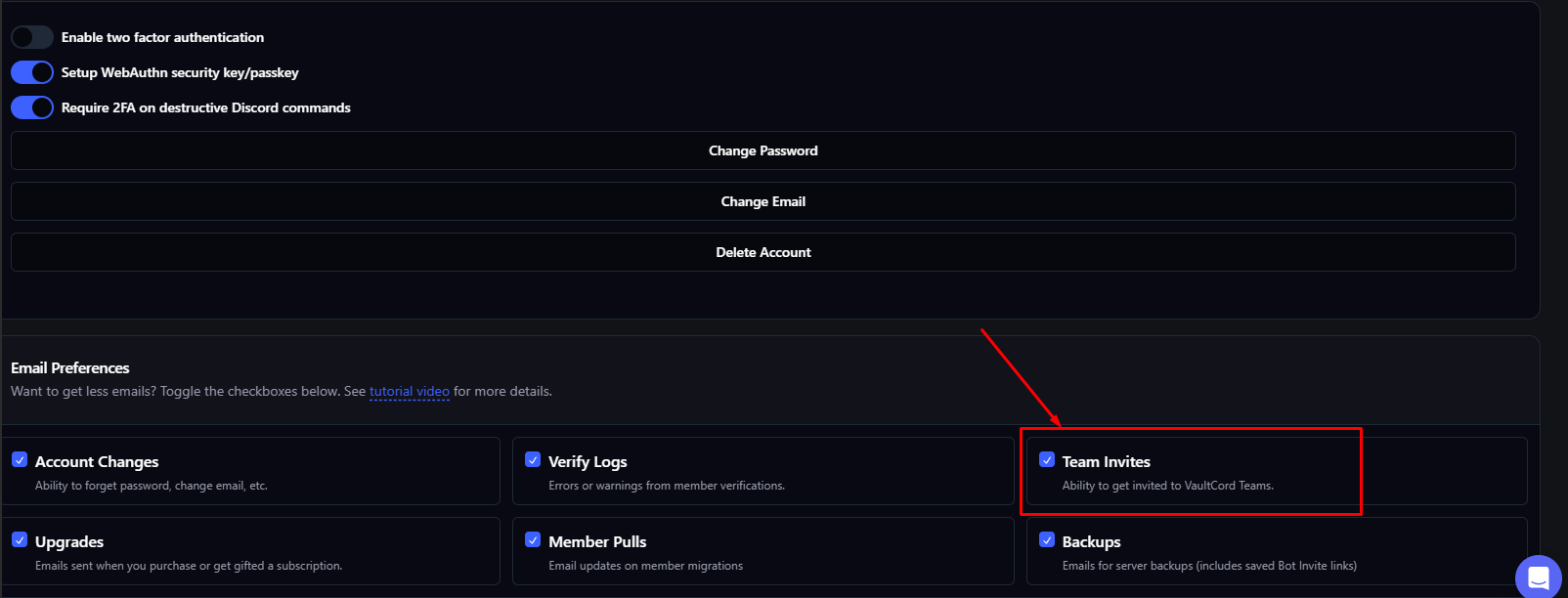
If your staff member already has a VaultCord account but isn't receiving your team invitation, their account email preferences might be blocking it.
**How to fix it:**
1. Tell your staff member to log into their [VaultCord Dashboard](https://dash.vaultcord.com).
2. Have them navigate to their **Account Settings**.
3. Scroll down to the **Email Preferences** section.
4. Ensure that the **Team Invites** checkbox is **Toggled ON** (Ability to get invited to VaultCord Teams).
Pick the permissions you want this team member to have. You can let them:
* **Pull Members:** Let them move verified users.
* **Ban/Delete Members:** Let them remove unwanted users from your database.
* **Send Message:** Let them send the verification bot message.
* **View/Update Settings:** Let them update dashboard and security settings.
Click **Invite**. The user will receive an email notification with instructions on how to access the dashboard.
## Troubleshooting
If your staff member already has a VaultCord account but isn't receiving your team invitation, their account email preferences might be blocking it.
**How to fix it:**
1. Tell your staff member to log into their [VaultCord Dashboard](https://dash.vaultcord.com).
2. Have them navigate to their **Account Settings**.
3. Scroll down to the **Email Preferences** section.
4. Ensure that the **Team Invites** checkbox is **Toggled ON** (Ability to get invited to VaultCord Teams).
 If a staff member leaves your team, you can remove their dashboard access right away. Just go to the **Teams** tab, find the user in your team list, and click the **Remove/Delete** button next to their name. Their access will be removed immediately.
Our support team is available through Live Chat on our website. Please share your Order ID or the email you used for the transaction so we can help you faster.
If a staff member leaves your team, you can remove their dashboard access right away. Just go to the **Teams** tab, find the user in your team list, and click the **Remove/Delete** button next to their name. Their access will be removed immediately.
Our support team is available through Live Chat on our website. Please share your Order ID or the email you used for the transaction so we can help you faster.