> ## Documentation Index
> Fetch the complete documentation index at: https://docs.vaultcord.com/llms.txt
> Use this file to discover all available pages before exploring further.
# Update server settings
> Change Discord server and other security settings for your VaultCord verification.
## Select your server
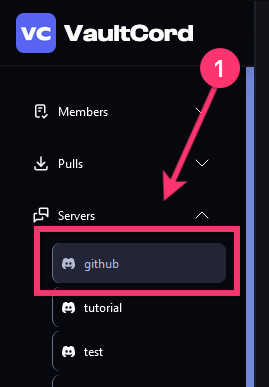
On the main dashboard page, click **Servers** and then click again on your server.
 ## General settings
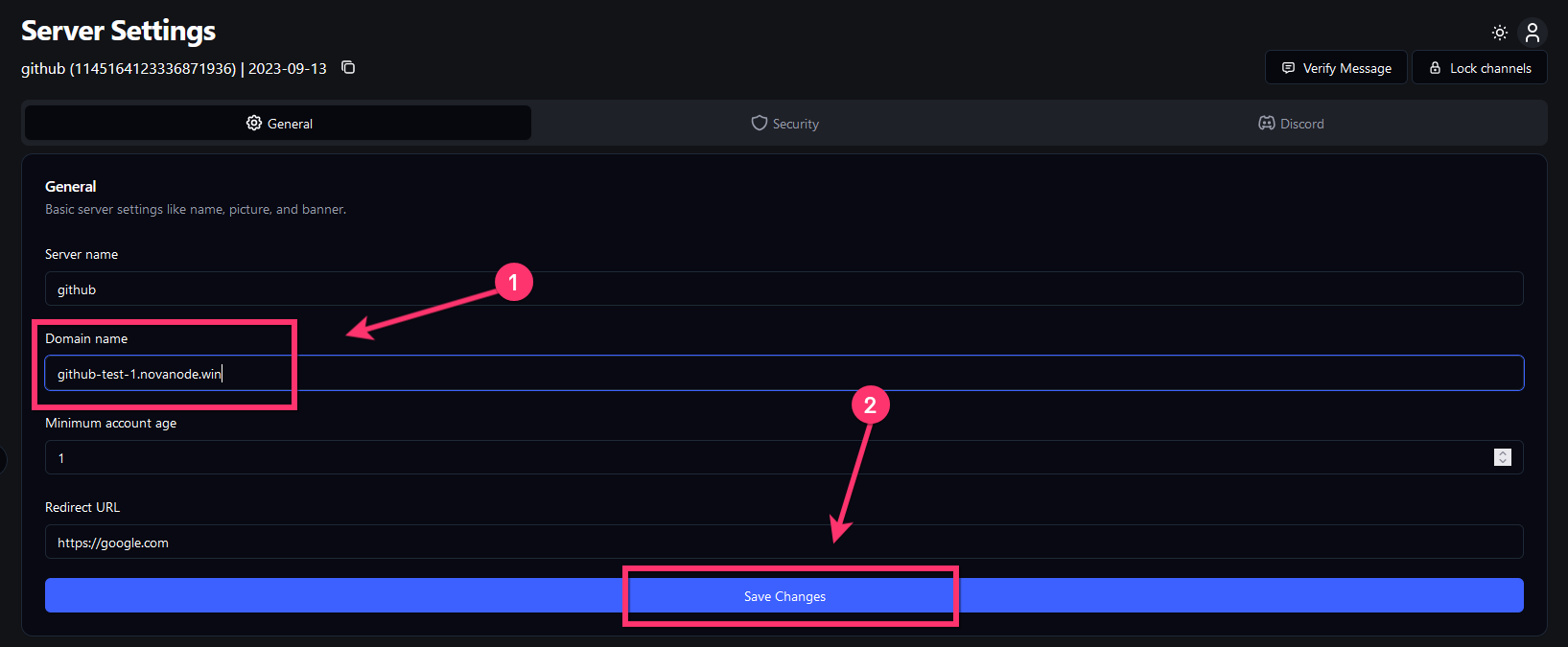
These are the settings you can update on General tab:
* **Server Name:** The title on verification page
* **Domain Name:** The website link of your verification page
* **Minimum Account:** Newest Discord account age allowed, in days
* **Redirect URL:** (Optional) Send members to any website AFTER verification
Make sure to click **Save Changes** or the settings will NOT save.
## General settings
These are the settings you can update on General tab:
* **Server Name:** The title on verification page
* **Domain Name:** The website link of your verification page
* **Minimum Account:** Newest Discord account age allowed, in days
* **Redirect URL:** (Optional) Send members to any website AFTER verification
Make sure to click **Save Changes** or the settings will NOT save.
 ## Discord settings
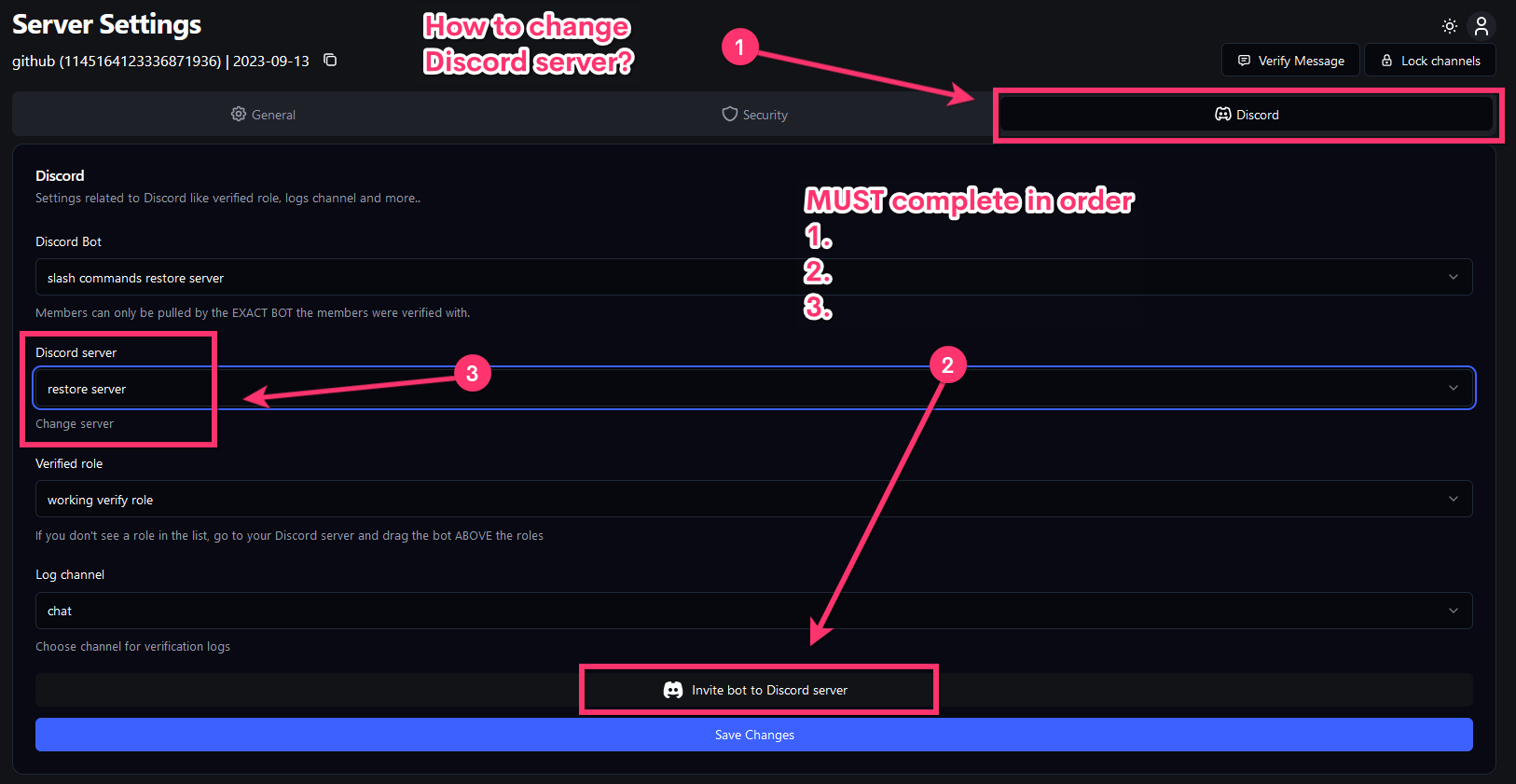
These are the settings you can update on Discord tab:
* **Discord Bot:** The Discord bot holding your members (**only the SAME Discord bot** can pull your members)
* **Discord Server:** The Discord server your verification is in.
* **Verified Role:** (Optional) The Discord role your members get after verification
* **Log Channel:** (Optional) The channel to receive webhook logs including user data of members who verify.
Make sure to click **Save Changes** or the settings will NOT save.
## Discord settings
These are the settings you can update on Discord tab:
* **Discord Bot:** The Discord bot holding your members (**only the SAME Discord bot** can pull your members)
* **Discord Server:** The Discord server your verification is in.
* **Verified Role:** (Optional) The Discord role your members get after verification
* **Log Channel:** (Optional) The channel to receive webhook logs including user data of members who verify.
Make sure to click **Save Changes** or the settings will NOT save.
 If you have any questions, join our [Discord Server](https://vaultcord.com/discord) and ask us anything!