> ## Documentation Index
> Fetch the complete documentation index at: https://docs.vaultcord.com/llms.txt
> Use this file to discover all available pages before exploring further.
# Create a Bot
> Step-by-step guide for creating Custom Bot
> Create a application through [Discord Developer Page](https://discord.com/developers/applications?new_application=true)
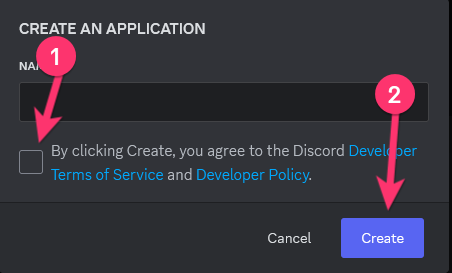 >
You can use any name for the bot. This name will be displayed on the member list.
## Adding your bot to VaultCord
> Head over to [VaultCord](https://dash.vaultcord.com/bots/add), to [create a bot](https://dash.vaultcord.com/bots/add) and then follow the requested information shown on the dashboard.
> Click on the application you created on the [Discord Developer Page](https://discord.com/developers/applications?new_application=false) Next go to the **Bot** tab within that application. And click reset token, then copy the token.
>
You can use any name for the bot. This name will be displayed on the member list.
## Adding your bot to VaultCord
> Head over to [VaultCord](https://dash.vaultcord.com/bots/add), to [create a bot](https://dash.vaultcord.com/bots/add) and then follow the requested information shown on the dashboard.
> Click on the application you created on the [Discord Developer Page](https://discord.com/developers/applications?new_application=false) Next go to the **Bot** tab within that application. And click reset token, then copy the token.
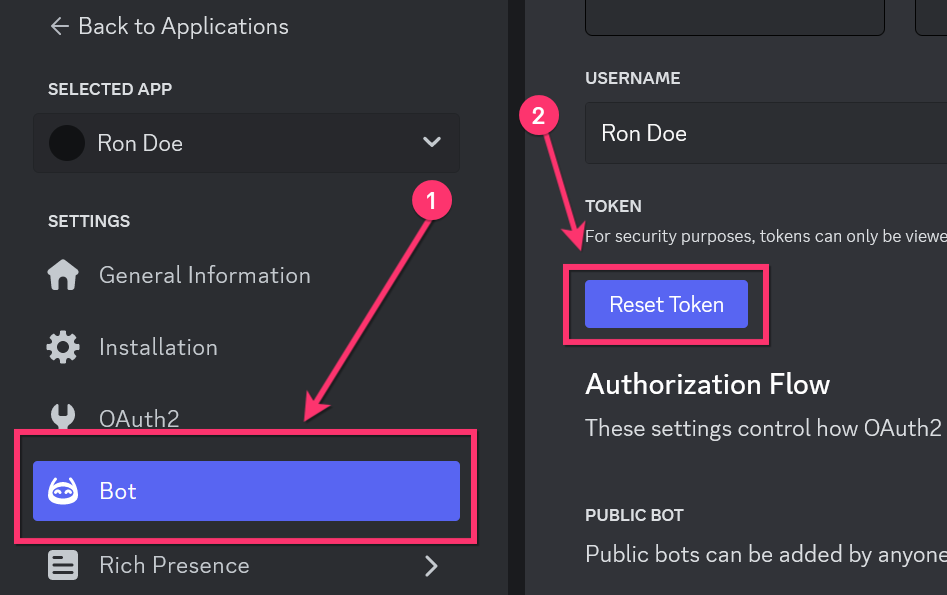 ****Then head back to VaultCord and enter the token inside of the bot token section.****
 > In your application within the [Discord Developer Page](https://discord.com/developers/applications?new_application=false) go to the OAuth2 tab. And click reset secret, then copy the client secret.
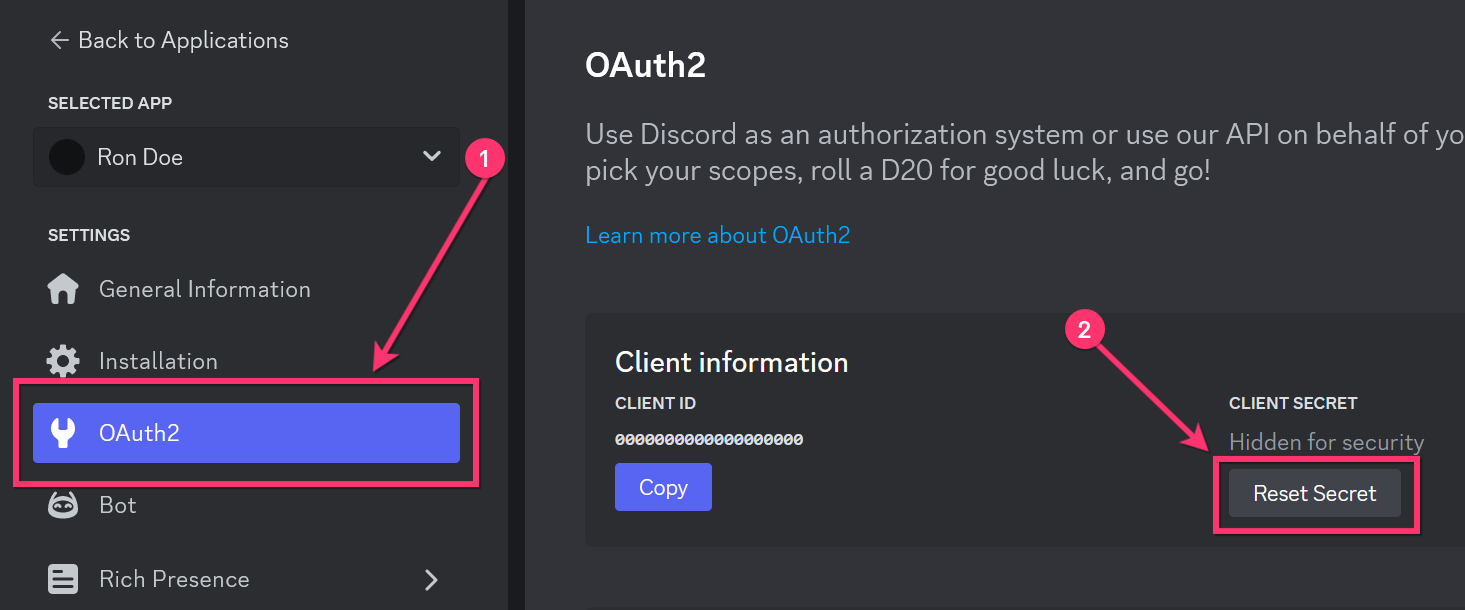 ****Then head back to VaultCord and enter the client secret inside of the client secret section.****
 > Click the link shown on the dashboard to open Discord Portal.
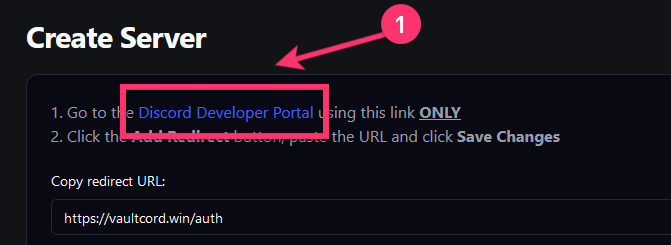 >
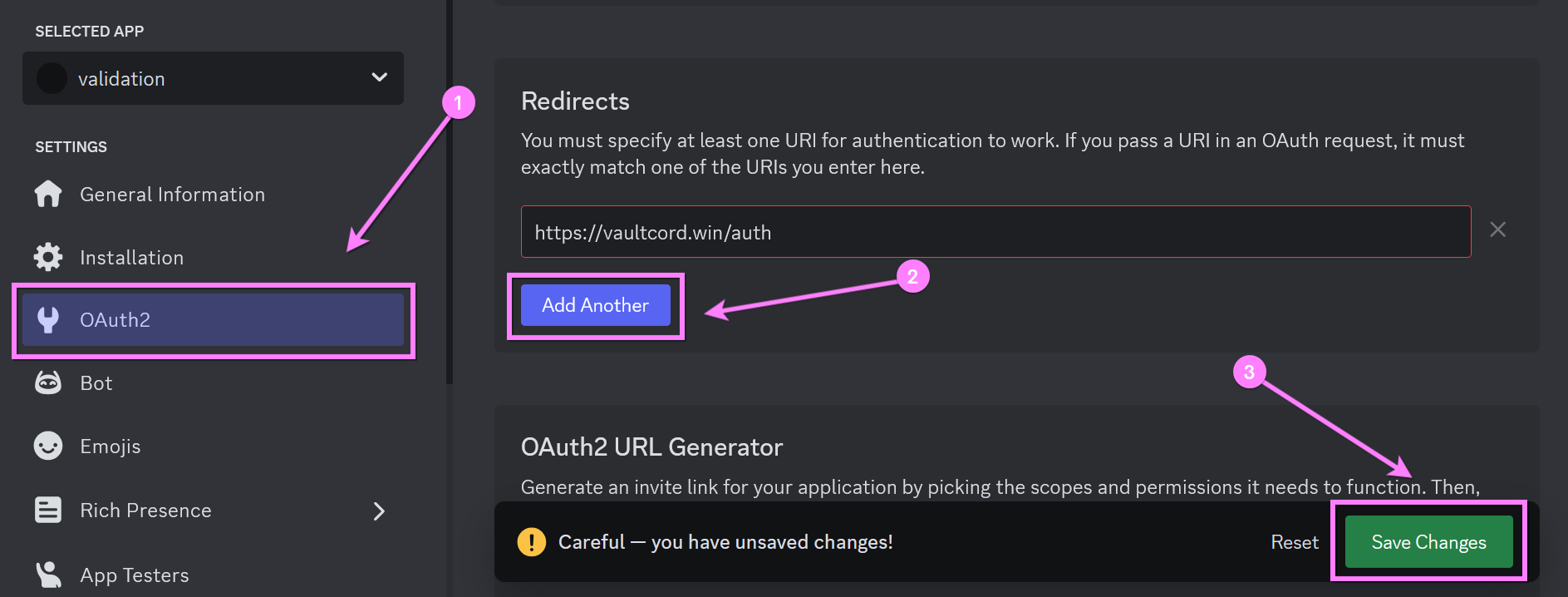
On the Discord Developer Portal, save the redirect `https://vaultcord.win/auth` and then click **Proceed** on VaultCord.
>
On the Discord Developer Portal, save the redirect `https://vaultcord.win/auth` and then click **Proceed** on VaultCord.
 You have successfully setup a Custom Discord Bot for VaultCord, next add a server on our dashboard.
Add your Discord Server on VaultCord.
If you have any questions, Feel free to join our [Discord Server](https://vaultcord.com/discord) and ask us anything!
You have successfully setup a Custom Discord Bot for VaultCord, next add a server on our dashboard.
Add your Discord Server on VaultCord.
If you have any questions, Feel free to join our [Discord Server](https://vaultcord.com/discord) and ask us anything!