> ## Documentation Index
> Fetch the complete documentation index at: https://docs.vaultcord.com/llms.txt
> Use this file to discover all available pages before exploring further.
# FAQ
> Find our most frequently asked questions here.
Yes. VaultCord employs Discord’s official OAuth2 system and adheres to Discord Developer Terms. Our application is verified by Discord. We never request your Discord password, and all sensitive tokens are encrypted. Why trust us? VaultCord’s owner formerly operated KeyAuth, a developer platform with over 190,000 users. You can also consult our TrustPilot reviews to gauge our reputation: [TrustPilot](https://www.trustpilot.com/review/vaultcord.com)
Yes, VaultCord is free to use. Premium is entirely optional and unlocks additional features and higher limits for power users. Core functionality, including 24/7 bot hosting and standard verification, is available on the free plan. If you ever cancel Premium, your server will continue to run on the free tier.
Premium offers optional enhancements such as higher usage limits, advanced verification controls, and additional backup/restore options. See the current feature comparison and pricing here: [Upgrade](https://dash.vaultcord.com/upgrade).
Open the Members tab in your dashboard and select Pull Members. This syncs your server member list with VaultCord. Watch a quick walkthrough here: [Video tutorial](https://www.youtube.com/watch?v=02bX-Y8zrw8).
Yes. We host your custom bot 24/7 on all plans, including the free plan.
At minimum, the bot needs: - Create Invites - Manage Roles. Please do not grant your bot Administrator status, as Discord has a history of incorrectly suspending unverified bots that are Administrators in a server that gets banned. If you're using the custom bot and it hasn't been verified as a Discord App (i.e., ID verification is not complete), don't grant the bot Administrator access.
VaultCord focuses on backing up server structure, such as categories, channels, roles, forums, automod rules, permissions, emojis, and bans. Message content and individual member role assignments are also possible to backup.
Yes. You can restore to a new or existing server. Partial restores (for example, specific roles or channels) are supported where applicable, allowing you to merge structures without overwriting everything.
We collect only what is necessary to provide verification and backup features, such as user IDs, guild IDs, and configuration data you set. We do not store Discord passwords. Access tokens are encrypted and can be revoked at any time via your Discord Authorized Apps settings or in the VaultCord dashboard.
Yes, this is a premium feature that allows users to view IP addresses by default. You can disable this in the Security tab of VaultCord settings. You may also choose to enable viewing members' emails, private profile connections, and all Discord servers their account is linked to.
Read our [Privacy Policy](https://vaultcord.com/privacy-policy) to understand the numerous ways we allow both VaultCord customers and random members to opt out.
Your account automatically returns to the free plan. Your server remains online, verification continues to work, and you keep your data. Premium-only features and higher limits will no longer be available until you re-upgrade.
Yes. You can manage multiple servers from one account. You can also grant dashboard access to [trusted team members](https://dash.vaultcord.com/teams) with role-based permissions so they can help configure verification and backups without sharing your login.
Yes. We use official APIs, respect rate limits, and design features to comply with Discord policies. If Discord’s platform rules change, we will update VaultCord accordingly to keep your server compliant.
Message the [VaultCord support team](https://vaultcord.com/discord). Please include your server ID, a brief description, and screenshots or error codes so we can assist you quickly.
If the bot is kicked or loses required permissions, verification and backups may pause. Re-invite the bot with the recommended permissions and re-run Pull Members if needed. Your saved configurations remain intact.
You can cancel anytime from your dashboard. Billing cycles continue through the end of the current period, after which you will automatically move to the free plan. Invoices and receipts are sent via email. Refunds are handled per our [posted refund policy](https://vaultcord.com/refund-policy).
Yes, you can easily migrate from providers like Guild Restore or RestoreCord without starting from scratch! You can keep your existing custom bot and bring your previously verified members with you.
You can use the same Discord bot application you used with your previous provider.
1. Go to your [Discord Developer Portal](https://discord.com/developers/applications) and select your bot.
2. Navigate to the **Bot** tab, click **Reset Token** (if you don't have it saved), and copy the new token.
3. Go to the [VaultCord Dashboard](https://dash.vaultcord.com/bots/add) and paste your existing bot token and client secret.
**Crucial Step:** Make sure to go to the **OAuth2** tab in the Discord Developer Portal, delete the redirect URLs from your *old* provider, and add `https://vaultcord.win/auth` so VaultCord can function properly.
If your previous verification provider allows you to export your verified members database (as a `.json`, `.csv`, or `.sql` file), download it to your computer. Because your community's data privacy is our top priority, we process these imports directly to ensure a safe and seamless transition.
Please open a support ticket via our [Live Chat Support](https://vaultcord.com/discord) and provide your exported file. Our database administrators will securely migrate your members to your VaultCord dashboard.
Finally, go to your Discord server and delete the old verification panel sent by your previous bot. Use the VaultCord dashboard or the `/verify-embed` command to send a brand new, secure VaultCord verification message.
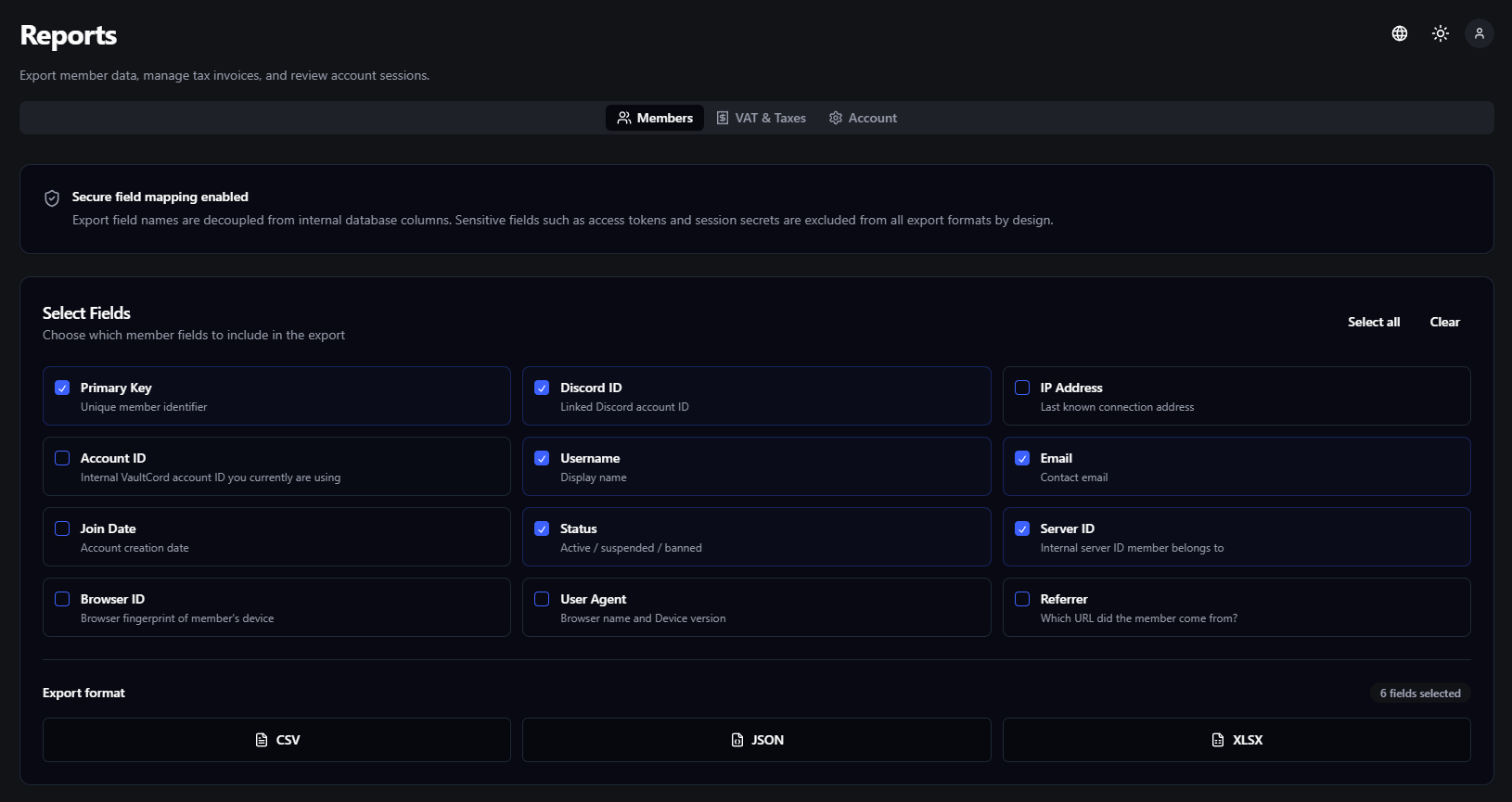
VaultCord's comprehensive **Reports** page allows you to seamlessly download and export verified member information, order invoices, and monitor login session trails.
### 📊 Exporting Member Data
You can pull specific data points for your verified users, including Discord IDs, IP Addresses, Emails, and Browser Analytics.
Go to [dash.vaultcord.com/reports](https://dash.vaultcord.com/reports) and ensure you are on the **Members** tab.
Choose the specific data points you want to include in your export (e.g., IP Address, Join Date, Status). Note that sensitive fields like access tokens are excluded by design for security.
Choose your desired export format (**CSV**, **JSON**, or **XLSX**) at the bottom of the page to instantly compile and download the report to your device.
### 🧾 Taxes, Invoices & Session Trails
* **VAT & Taxes:** If you use VaultCord to monetize your server or use the Marketplace, navigate to the **VAT & Taxes** tab to export all of your order invoices and tax records for accounting season.
* **Account Sessions:** Under the **Account** tab, you can review your login session trails to track exactly where and when your VaultCord accounts were accessed.
Yes! VaultCord features a powerful built-in **Account Switcher** that allows you to connect and manage multiple VaultCord accounts simultaneously—without the hassle of constantly logging in and out. 🚀
This feature is tailor-made for power users, agency owners, and server managers who need blazing-fast access to different workspaces.
### 🔄 How to connect and switch accounts
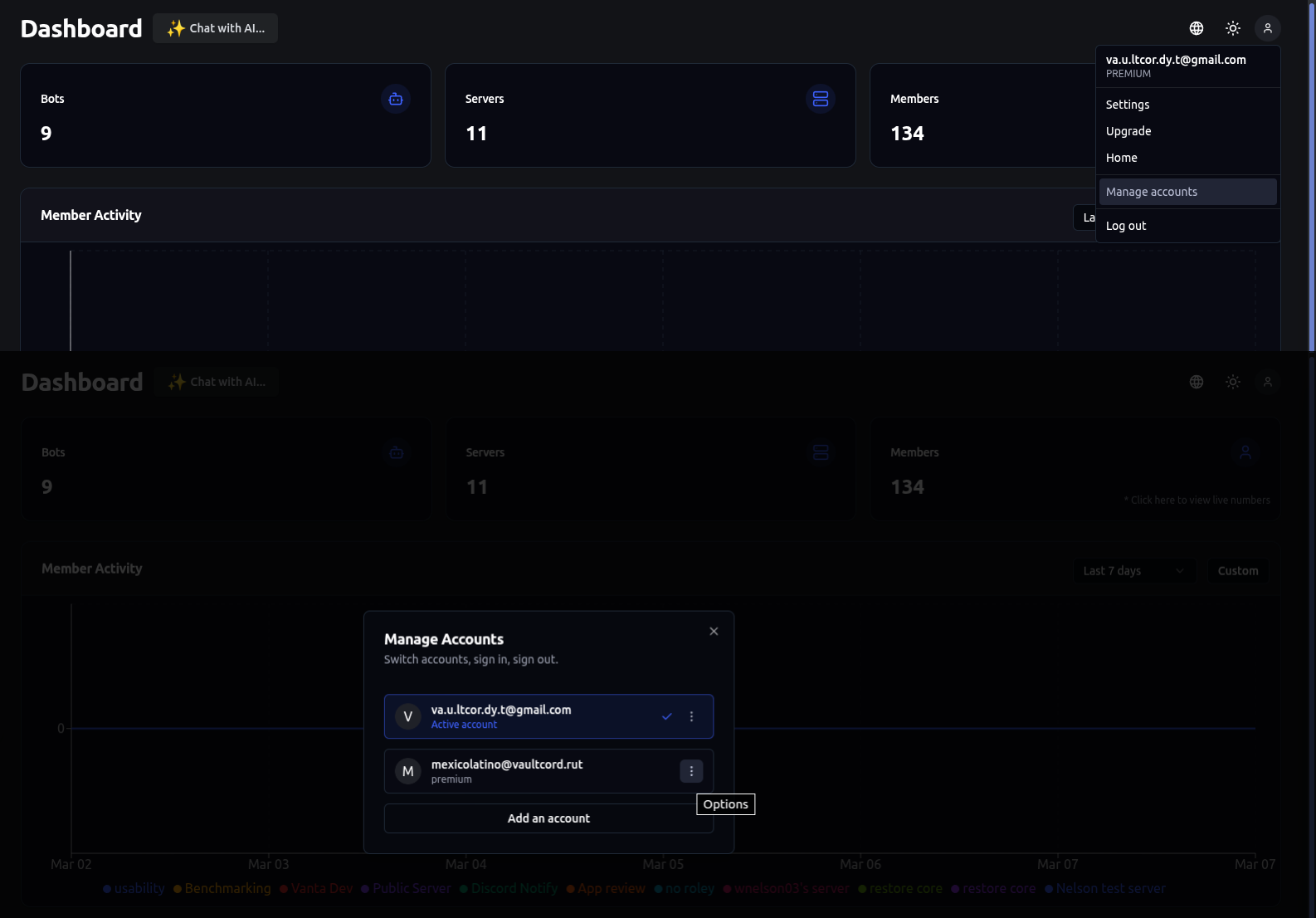
Click on your **profile avatar** located in the top right corner of the VaultCord dashboard to open the account dropdown menu.
Look for the **Add Account** or **Connect Account** button within the menu.
Simply enter the login credentials for your secondary VaultCord account. Once logged in, VaultCord will instantly link this profile to your current browser session. ✅
You can now open the profile menu at any time and simply click on any of your connected accounts to switch dashboards instantly!
You can link a maximum of **8 accounts** to your switcher at the same time.
***
### 🛡️ Security & Login Session Trails
When managing multiple accounts, security is our top priority. VaultCord meticulously tracks every login session to ensure your dashboards are never accessed by unauthorized users.
You can view your active and past login sessions by navigating to the **Reports** page and clicking on the **Account** tab. This section provides a detailed trail of:
* 📅 **Date & Time:** The exact moment the account was accessed.
* 📍 **IP Address:** The network location of the login.
* 💻 **Browser & OS:** Device details used during the session.
**Suspicious Activity?** If you notice a login session trail from an unknown location or device, please contact our [Live Support](https://vaultcord.com/discord) immediately! Provide us with the details of the suspicious session so our team can secure your VaultCord account and investigate the unauthorized access.
Managing roles in a large Discord server can be an incredibly time-consuming task. To make server management effortless, VaultCord offers powerful built-in **Role Management Commands** that allow you to assign or remove roles from your entire member base in just a few seconds! ⚡
Whether you are restructuring your community, giving out an event reward, or cleaning up old roles, you can use our intuitive slash commands directly inside your Discord server.
### 🛠️ Available Role Commands
Use the `/massrole` command to instantly add a specific role to multiple members.
Instead of manually clicking through hundreds of user profiles, you can simply select the target role, and VaultCord will automatically distribute it to your verified members. This is perfect for milestone rewards, event participation, or giving mass access to new categories!
Need to strip a role from everyone? The `/unrole` command does exactly that.
With one quick command, you can remove a designated role from all members who currently have it. This is highly effective for ending temporary events, removing seasonal access passes, or resetting server hierarchies.
**Permission Check:** Before using these commands, please ensure that your VaultCord bot has the **Manage Roles** permission and that its highest role is placed strictly *above* the roles it is trying to assign or remove in your Discord Server Settings. The bot cannot assign roles that are higher than its own.
### 📺 Video Tutorial
Want to see these commands in action? We have prepared a complete step-by-step video guide on how to utilize the massrole and unrole features safely and efficiently.
*Alternatively, you can watch the [Role Management Tutorial directly on YouTube](https://www.youtube.com/watch?v=TAdlbgf57ZY).*
Our support team is available through Live Chat on our website. Please share your Order ID or the email you used for the transaction so we can help you faster.
 ### 📊 Exporting Member Data
You can pull specific data points for your verified users, including Discord IDs, IP Addresses, Emails, and Browser Analytics.
### 📊 Exporting Member Data
You can pull specific data points for your verified users, including Discord IDs, IP Addresses, Emails, and Browser Analytics.
 ### 🔄 How to connect and switch accounts