> ## Documentation Index
> Fetch the complete documentation index at: https://docs.vaultcord.com/llms.txt
> Use this file to discover all available pages before exploring further.
# Common Errors
> Find solutions to our most common errors here.
Navigate to the [Discord Developer Page](https://discord.com/developers/applications?new_application=false) and select your bot. Next click on the **OAuth2 tab** and click **Add Redirect** then paste **[https://vaultcord.win/auth](https://vaultcord.win/auth)** and click **Save Changes.**
Go to the [VaultCord dashboard](https://dash.vaultcord.com) and click on the **Servers tab.** Then select your server, and head to the Discord tab inside of the dashboard. Then invite the bot to your Discord server, and select the Discord server as the server you added the bot to. Then press **Save Changes**. 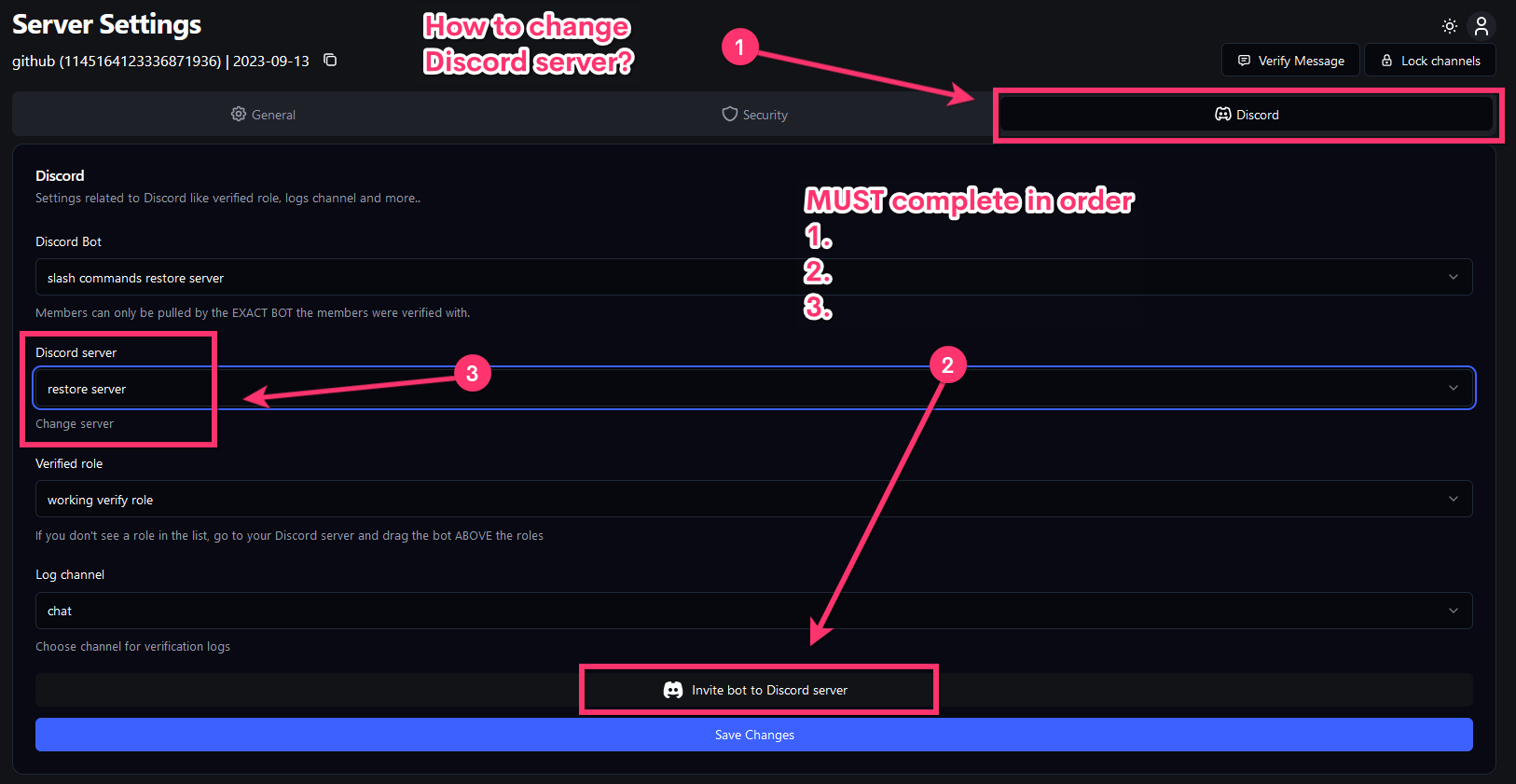 Please [contact our support](https://vaultcord.com/discord) and send **a screenshot of the error** and ID. We'll help you fix this as soon as possible.
Please disable [iCloud relay](https://support.apple.com/en-in/guide/iphone/iph499d287c2/ios) to fix this error.
- Open the [VaultCord dashboard](https://dash.vaultcord.com) → Servers tab → select your server → Discord tab, and make sure the bot is **invited** to the correct server. - Check that the bot’s role has the required permissions (Send Messages, Read Message History, Embed Links; plus Manage Roles/Kick/Ban if you use those features). - Ensure the bot’s role is **above** any roles it needs to manage in the role list. - If you recently changed permissions, re-invite the bot from the dashboard and try again.
- Re-invite the bot from the dashboard ensuring the invite includes the **applications.commands** and **bot** scopes. If that doesn't help, go to the **Bots** page and click Update Slash Commands.
- Verify you’re logged into the dashboard with the **same Discord account** that has access to the server. - You must have the **Manage Server** permission on the server to manage it in VaultCord. - Click your avatar in the dashboard and **Log out**, then log back in to refresh Discord permissions. - If the server still doesn’t appear, invite the bot to the server from the dashboard and refresh.
- You need the **Manage Server** permission in the target server to invite the bot. - Try inviting from the dashboard’s Discord tab for your server. - If the invite page shows no servers, make sure you’re logged into the correct Discord account and that the server allows bot invites.
- Move the bot’s highest role **above** the roles it needs to assign/manage in Server Settings → Roles. - Ensure the bot has the needed permissions (e.g., Manage Roles, Kick Members, Ban Members). - Check per‑channel permission overrides for any blocks on the bot.
This error occurs when the core `authUrl` variable is accidentally deleted or replaced with a hardcoded link (e.g., `vaultcord.win/...`) in your verification message settings.
Please [contact our support](https://vaultcord.com/discord) and send **a screenshot of the error** and ID. We'll help you fix this as soon as possible.
Please disable [iCloud relay](https://support.apple.com/en-in/guide/iphone/iph499d287c2/ios) to fix this error.
- Open the [VaultCord dashboard](https://dash.vaultcord.com) → Servers tab → select your server → Discord tab, and make sure the bot is **invited** to the correct server. - Check that the bot’s role has the required permissions (Send Messages, Read Message History, Embed Links; plus Manage Roles/Kick/Ban if you use those features). - Ensure the bot’s role is **above** any roles it needs to manage in the role list. - If you recently changed permissions, re-invite the bot from the dashboard and try again.
- Re-invite the bot from the dashboard ensuring the invite includes the **applications.commands** and **bot** scopes. If that doesn't help, go to the **Bots** page and click Update Slash Commands.
- Verify you’re logged into the dashboard with the **same Discord account** that has access to the server. - You must have the **Manage Server** permission on the server to manage it in VaultCord. - Click your avatar in the dashboard and **Log out**, then log back in to refresh Discord permissions. - If the server still doesn’t appear, invite the bot to the server from the dashboard and refresh.
- You need the **Manage Server** permission in the target server to invite the bot. - Try inviting from the dashboard’s Discord tab for your server. - If the invite page shows no servers, make sure you’re logged into the correct Discord account and that the server allows bot invites.
- Move the bot’s highest role **above** the roles it needs to assign/manage in Server Settings → Roles. - Ensure the bot has the needed permissions (e.g., Manage Roles, Kick Members, Ban Members). - Check per‑channel permission overrides for any blocks on the bot.
This error occurs when the core `authUrl` variable is accidentally deleted or replaced with a hardcoded link (e.g., `vaultcord.win/...`) in your verification message settings.
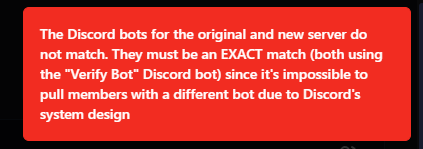 VaultCord **requires** the exact `authUrl` variable to generate unique, secure verification links for each individual member. If you manually replace this variable, the bot cannot link the user to the verification system, which results in this error.
### Step-by-Step Solution
First, go to the [VaultCord Dashboard](https://dash.vaultcord.com) and click on the **Servers** tab. Select your server from the list, navigate to the **Settings** menu, and open the **Message** tab.
Scroll down to the **Components** section, which is where your interactive buttons are configured. Click the **Options** dropdown button and select **JSON Editor**.
VaultCord **requires** the exact `authUrl` variable to generate unique, secure verification links for each individual member. If you manually replace this variable, the bot cannot link the user to the verification system, which results in this error.
### Step-by-Step Solution
First, go to the [VaultCord Dashboard](https://dash.vaultcord.com) and click on the **Servers** tab. Select your server from the list, navigate to the **Settings** menu, and open the **Message** tab.
Scroll down to the **Components** section, which is where your interactive buttons are configured. Click the **Options** dropdown button and select **JSON Editor**.
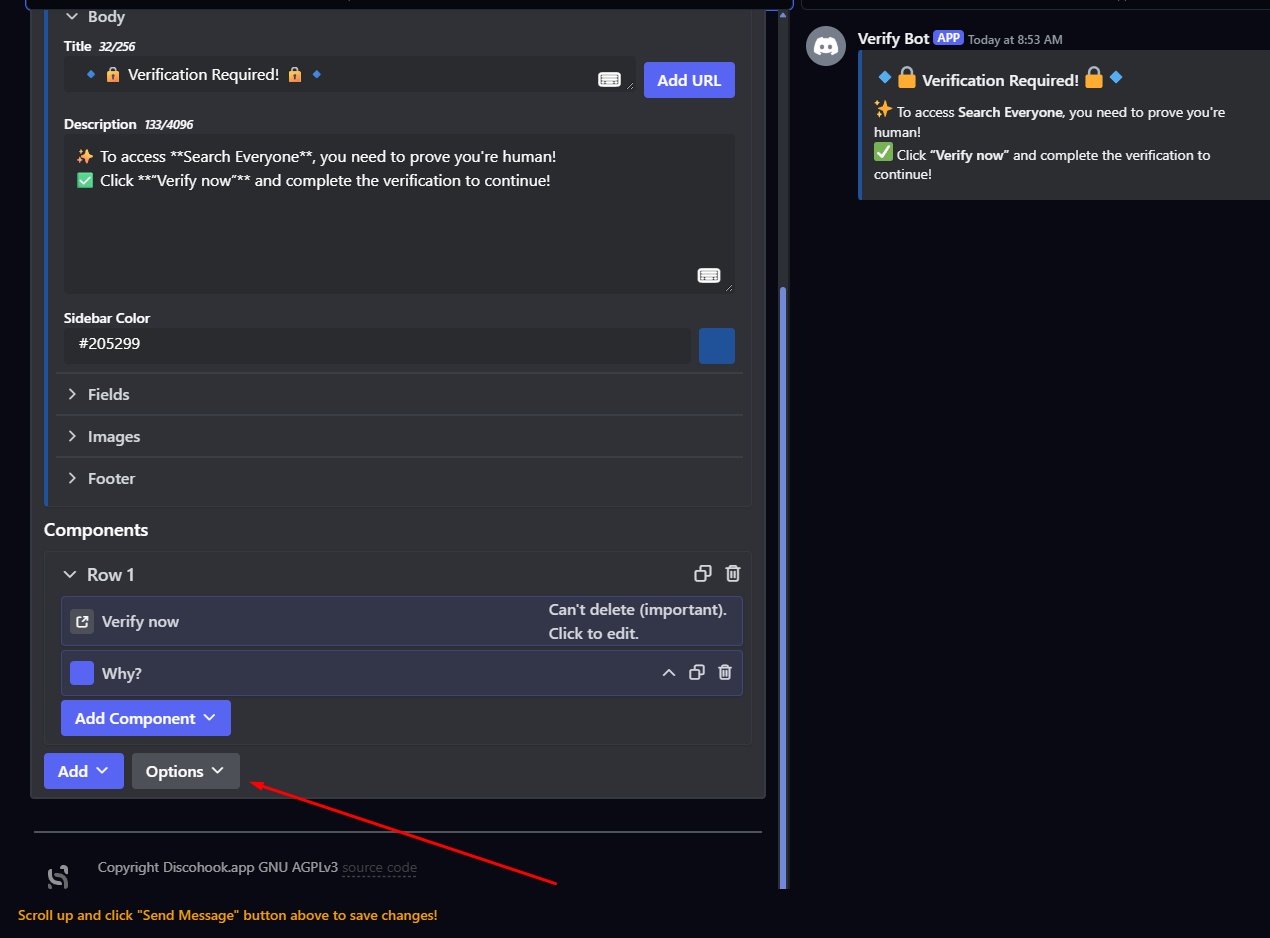 In the JSON editor, find the code block that controls your verification button. You will likely see an incorrect URL value. Delete that specific button block and replace it entirely with this corrected code:
```json theme={null}
{
"type": 2,
"style": 5,
"label": "Verify now",
"url": "{authUrl}",
"disabled": false
}
```
Ensure you only replace the broken button block and leave other components (like your "Why?" button) intact.
Once you have pasted the correct code, click **Save Changes**. Go back to your Discord server and trigger a new verification message to ensure the button now works perfectly.
If you have turned on the Ads program but your members do not see ads after clicking the "Verify" button, it is usually because of **duplicated verification links**.
If you recently backed up or cloned your Discord server, you might have **two servers using the same verification link** (for example, `vaultcord.win/your-server`) in your VaultCord dashboard.
**Why it breaks:** If two servers use the same custom vanity URL, VaultCord cannot tell them apart. To avoid problems like endless loops, the ad redirect does not work and the ad is skipped.
### How to Fix It
Log in to your [VaultCord Dashboard](https://dash.vaultcord.com/servers) and check your list of active servers. See if more than one server is using the same `vaultcord.win` URL.
Pick one of the servers with the duplicate link, usually the clone or backup, and click the **Settings** button for that server.
Find the **Vanity Link** or **Custom URL** section in the settings. Change the end of the URL to something unique. For example, you can change `vaultcord.win/main` to `vaultcord.win/main-backup`.
Save your changes. Then, ask a friend or use another account to test the new verification process. The ad should now show up as expected!
Our support team is available through Live Chat on our website. Please share your Order ID or the email you used for the transaction so we can help you faster.
In the JSON editor, find the code block that controls your verification button. You will likely see an incorrect URL value. Delete that specific button block and replace it entirely with this corrected code:
```json theme={null}
{
"type": 2,
"style": 5,
"label": "Verify now",
"url": "{authUrl}",
"disabled": false
}
```
Ensure you only replace the broken button block and leave other components (like your "Why?" button) intact.
Once you have pasted the correct code, click **Save Changes**. Go back to your Discord server and trigger a new verification message to ensure the button now works perfectly.
If you have turned on the Ads program but your members do not see ads after clicking the "Verify" button, it is usually because of **duplicated verification links**.
If you recently backed up or cloned your Discord server, you might have **two servers using the same verification link** (for example, `vaultcord.win/your-server`) in your VaultCord dashboard.
**Why it breaks:** If two servers use the same custom vanity URL, VaultCord cannot tell them apart. To avoid problems like endless loops, the ad redirect does not work and the ad is skipped.
### How to Fix It
Log in to your [VaultCord Dashboard](https://dash.vaultcord.com/servers) and check your list of active servers. See if more than one server is using the same `vaultcord.win` URL.
Pick one of the servers with the duplicate link, usually the clone or backup, and click the **Settings** button for that server.
Find the **Vanity Link** or **Custom URL** section in the settings. Change the end of the URL to something unique. For example, you can change `vaultcord.win/main` to `vaultcord.win/main-backup`.
Save your changes. Then, ask a friend or use another account to test the new verification process. The ad should now show up as expected!
Our support team is available through Live Chat on our website. Please share your Order ID or the email you used for the transaction so we can help you faster.