> ## Documentation Index
> Fetch the complete documentation index at: https://docs.vaultcord.com/llms.txt
> Use this file to discover all available pages before exploring further.
# Create backup
> Step-by-step guide for adding a Server to VaultCord.
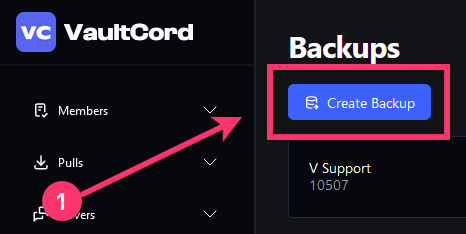
> On the main dashboard page, click **Backups**
 > Click the **Create Backup** button
 >
Make sure to close the popup windows after inviting the bot!
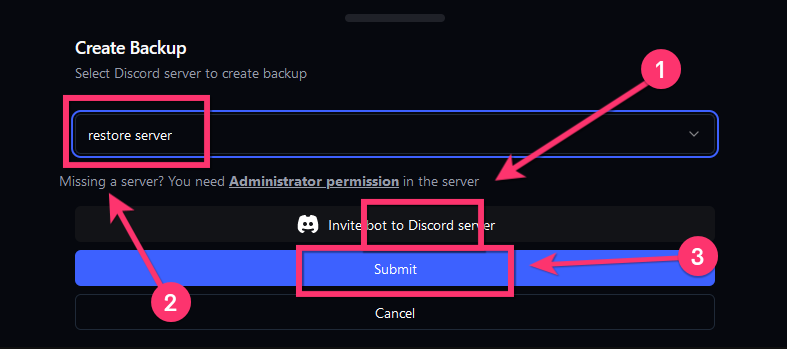
> 1. Click the **Invite bot** button
> 2. Choose the Discord server from the dropdown
> 3. Click the **Submit** button
>
Make sure to close the popup windows after inviting the bot!
> 1. Click the **Invite bot** button
> 2. Choose the Discord server from the dropdown
> 3. Click the **Submit** button
 >
Make sure YOU have **Administrator** permissions in the Discord server, we require this for security reasons.
## What does VaultCord backup?
* Server name
* Server icon
* Server banner URL
* Server description
* Server splash URL
* Server AFK (channel and timeout)
* Server default notification setting
* Server explicit content setting
* Server language locale
* Server boost bar setting
* Server verification level setting
* Server roles (name, color, permissions)
* Server categories (name, permissions)
* Server channels (name, permissions)
* Server emojis
* Server stickers
* Server bans (with reasons)
* Server messages (**350 per channel**)
* Server pinned messages
* Server attachments
* Server embeds
You have successfully backed up your server
If you have any questions, join our [Discord Server](https://vaultcord.com/discord) and ask us anything!
>
Make sure YOU have **Administrator** permissions in the Discord server, we require this for security reasons.
## What does VaultCord backup?
* Server name
* Server icon
* Server banner URL
* Server description
* Server splash URL
* Server AFK (channel and timeout)
* Server default notification setting
* Server explicit content setting
* Server language locale
* Server boost bar setting
* Server verification level setting
* Server roles (name, color, permissions)
* Server categories (name, permissions)
* Server channels (name, permissions)
* Server emojis
* Server stickers
* Server bans (with reasons)
* Server messages (**350 per channel**)
* Server pinned messages
* Server attachments
* Server embeds
You have successfully backed up your server
If you have any questions, join our [Discord Server](https://vaultcord.com/discord) and ask us anything!